
获取 5T OneDrive 账号
现在没有稳定的好的获取方法了,暂时不填。
无需服务器即可离线下载并自动上传到 OneDrive
首先注册 Heroku 账号
从 GitHub 部署到 Heroku
注册完成后打开 https://github.com/moeik/Heroku_aria2
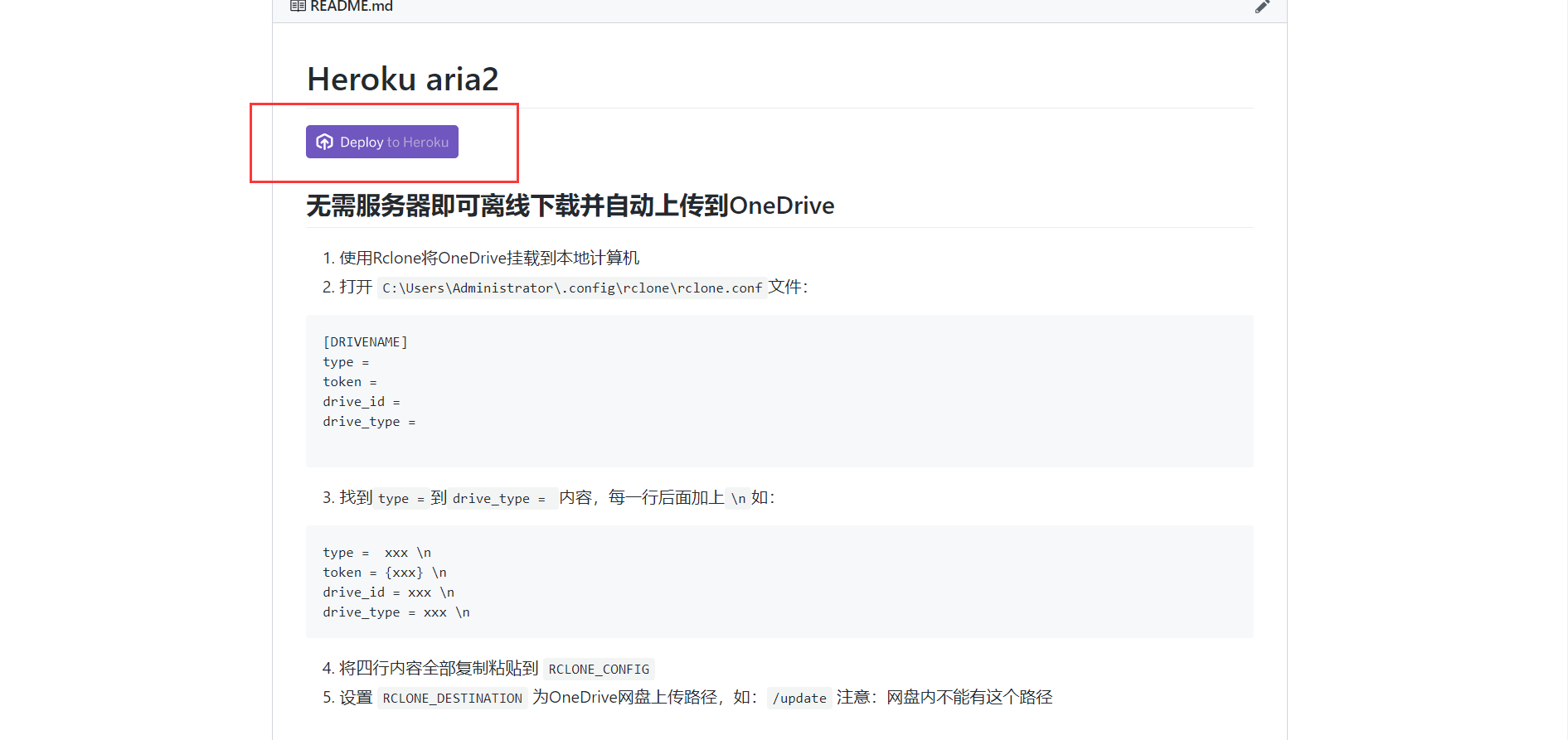
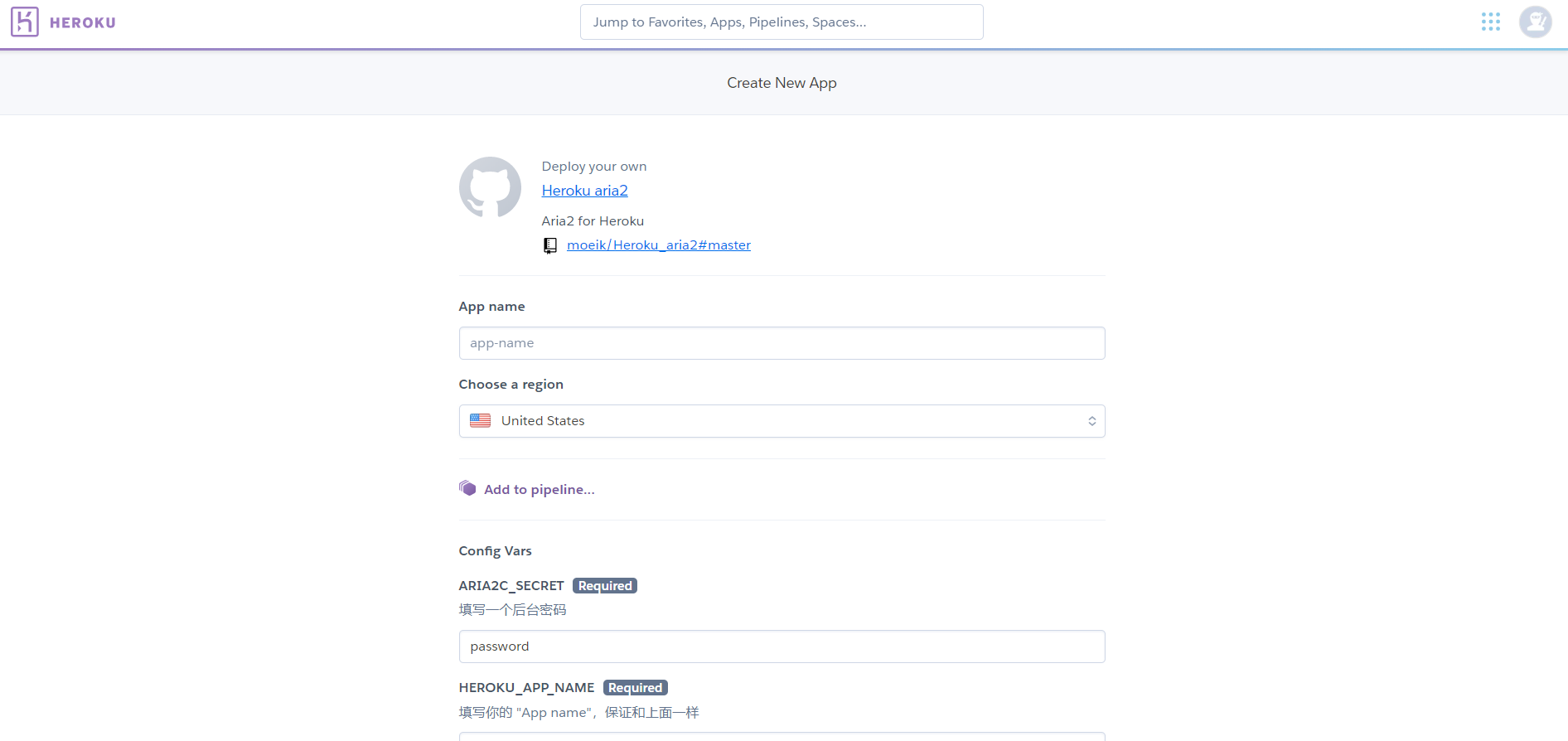
点击 Deploy to Heroku,然后会自动跳转到 Heroku 直接部署
Rclone 挂载 OneDrive
下载 Rclone:Downoad
解压打开如图:
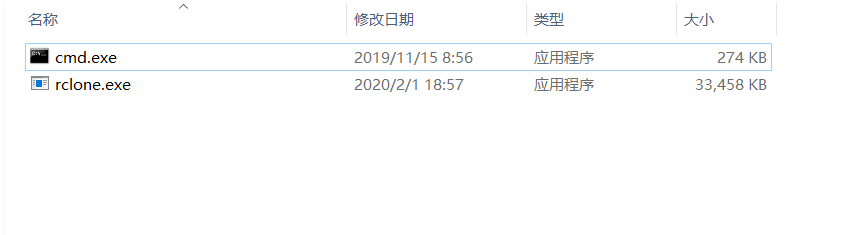
打开这里的 cmd 运行:
rclone config
注意:如果运行 rclone config 出现报错请将 rclone.exe 移动到 C:/windows/system32 文件夹下然后打开系统 cmd 运行命令!
就会看到:
D:\rclone-v1.51.0-windows-amd64>rclone config  //配置rclone
No remotes found - make a new one
n) New remote
s) Set configuration password
q) Quit config
n/s/q> n   //新建远程挂载
name> test  //名称(自定义)
Type of storage to configure.
Enter a string value. Press Enter for the default ("").
Choose a number from below, or type in your own value
 1 / 1Fichier
   \ "fichier"
 2 / Alias for an existing remote
   \ "alias"
 3 / Amazon Drive
   \ "amazon cloud drive"
 4 / Amazon S3 Compliant Storage Provider (AWS, Alibaba, Ceph, Digital Ocean, Dreamhost, IBM COS, Minio, etc)
   \ "s3"
 5 / Backblaze B2
   \ "b2"
 6 / Box
   \ "box"
 7 / Cache a remote
   \ "cache"
 8 / Citrix Sharefile
   \ "sharefile"
 9 / Dropbox
   \ "dropbox"
10 / Encrypt/Decrypt a remote
   \ "crypt"
11 / FTP Connection
   \ "ftp"
12 / Google Cloud Storage (this is not Google Drive)
   \ "google cloud storage"
13 / Google Drive
   \ "drive"
14 / Google Photos
   \ "google photos"
15 / Hubic
   \ "hubic"
16 / In memory object storage system.
   \ "memory"
17 / JottaCloud
   \ "jottacloud"
18 / Koofr
   \ "koofr"
19 / Local Disk
   \ "local"
20 / Mail.ru Cloud
   \ "mailru"
21 / Mega
   \ "mega"
22 / Microsoft Azure Blob Storage
   \ "azureblob"
23 / Microsoft OneDrive
   \ "onedrive"
24 / OpenDrive
   \ "opendrive"
25 / Openstack Swift (Rackspace Cloud Files, Memset Memstore, OVH)
   \ "swift"
26 / Pcloud
   \ "pcloud"
27 / Put.io
   \ "putio"
28 / QingCloud Object Storage
   \ "qingstor"
29 / SSH/SFTP Connection
   \ "sftp"
30 / Sugarsync
   \ "sugarsync"
31 / Transparently chunk/split large files
   \ "chunker"
32 / Union merges the contents of several remotes
   \ "union"
33 / Webdav
   \ "webdav"
34 / Yandex Disk
   \ "yandex"
35 / http Connection
   \ "http"
36 / premiumize.me
   \ "premiumizeme"
Storage>23           //选择OneDrive
** See help for onedrive backend at: https://rclone.org/onedrive/ **

Microsoft App Client Id
Leave blank normally.
Enter a string value. Press Enter for the default ("").
client_id>   //回车
Microsoft App Client Secret
Leave blank normally.
Enter a string value. Press Enter for the default ("").
client_secret>  //回车
Edit advanced config? (y/n)
y) Yes
n) No (default)
y/n>  //回车
Remote config
Use auto config?
 * Say Y if not sure
 * Say N if you are working on a remote or headless machine
y) Yes (default)
n) No
y/n>  //回车
这时候会弹出浏览器让你登录 OneDrive
这里登录你要挂载的 OneDrive 账号

看到这个页面就可以关闭浏览器了,回到 cmd
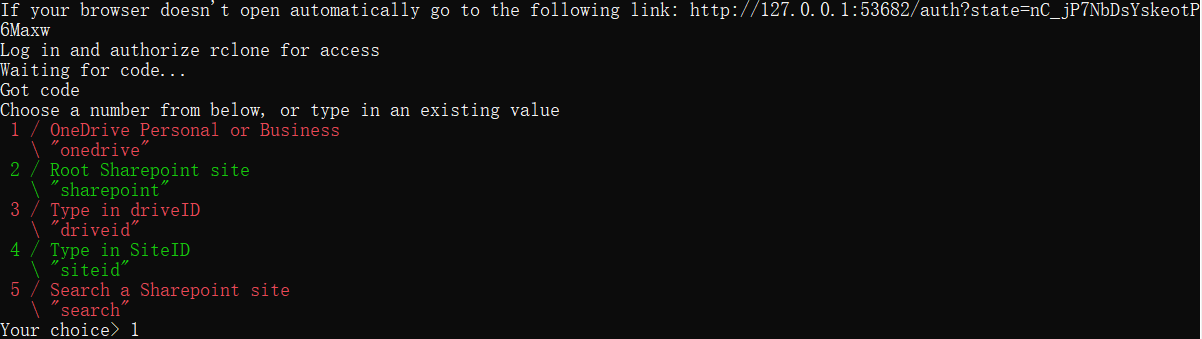
获取成功
Choose a number from below, or type in an existing value
 1 / OneDrive Personal or Business
   \ "onedrive"
 2 / Root Sharepoint site
   \ "sharepoint"
 3 / Type in driveID
   \ "driveid"
 4 / Type in SiteID
   \ "siteid"
 5 / Search a Sharepoint site
   \ "search"
Your choice> 1 //选择你的OneDrive版本
Found 1 drives, please select the one you want to use:
0: OneDrive (business) id=xxxxxxxxxxxxxxxxxxxxxxx
Chose drive to use:>0  //这里选择0
Found drive 'root' of type 'business', URL: https://fordes-my.sharepoint.com/personal/cdm_fordes_top/Documents
Is that okay?
y) Yes (default)
n) No
y/n> y //y回车
这时候关闭 cmd
Heroku 配置填写
打开 C:\Users\Administrator\.config\rclone\rclone.conf路径不一定和我的一样,Administrator 根据你自己的路径
每一项后面添加 \n,如图:
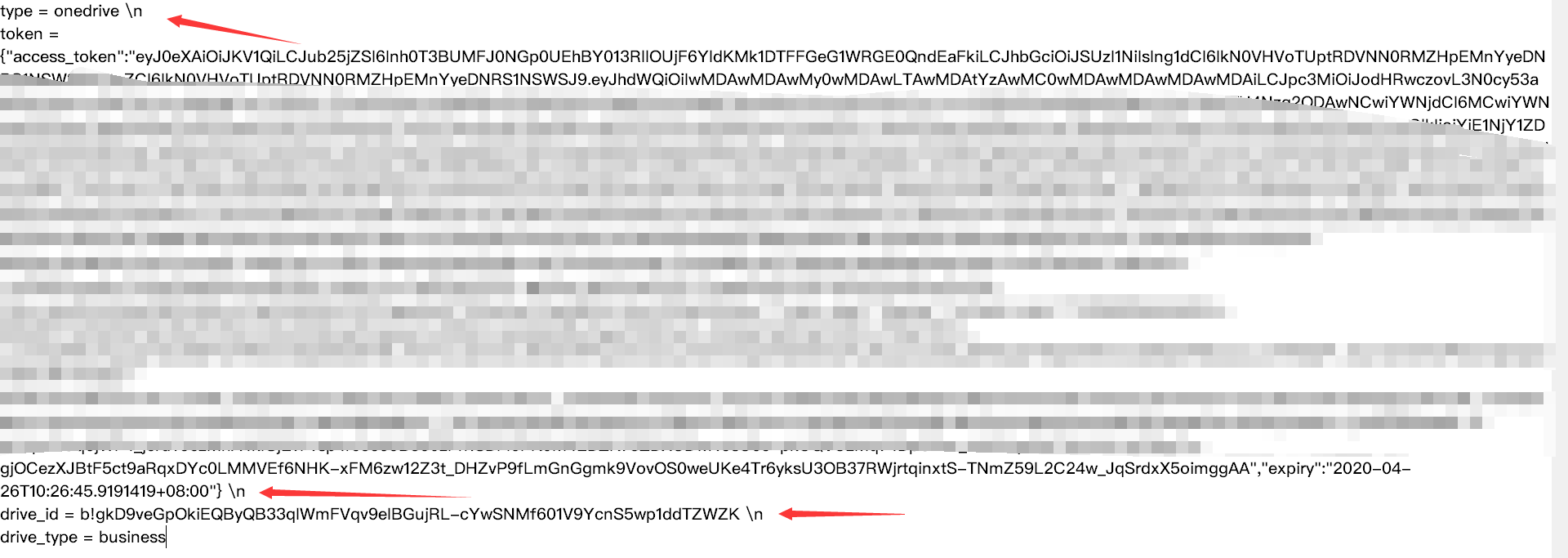
复制配置,从type = ···复制到drive_type = ···
粘贴到 Heroku 里面的 RCLONE_CONFIG
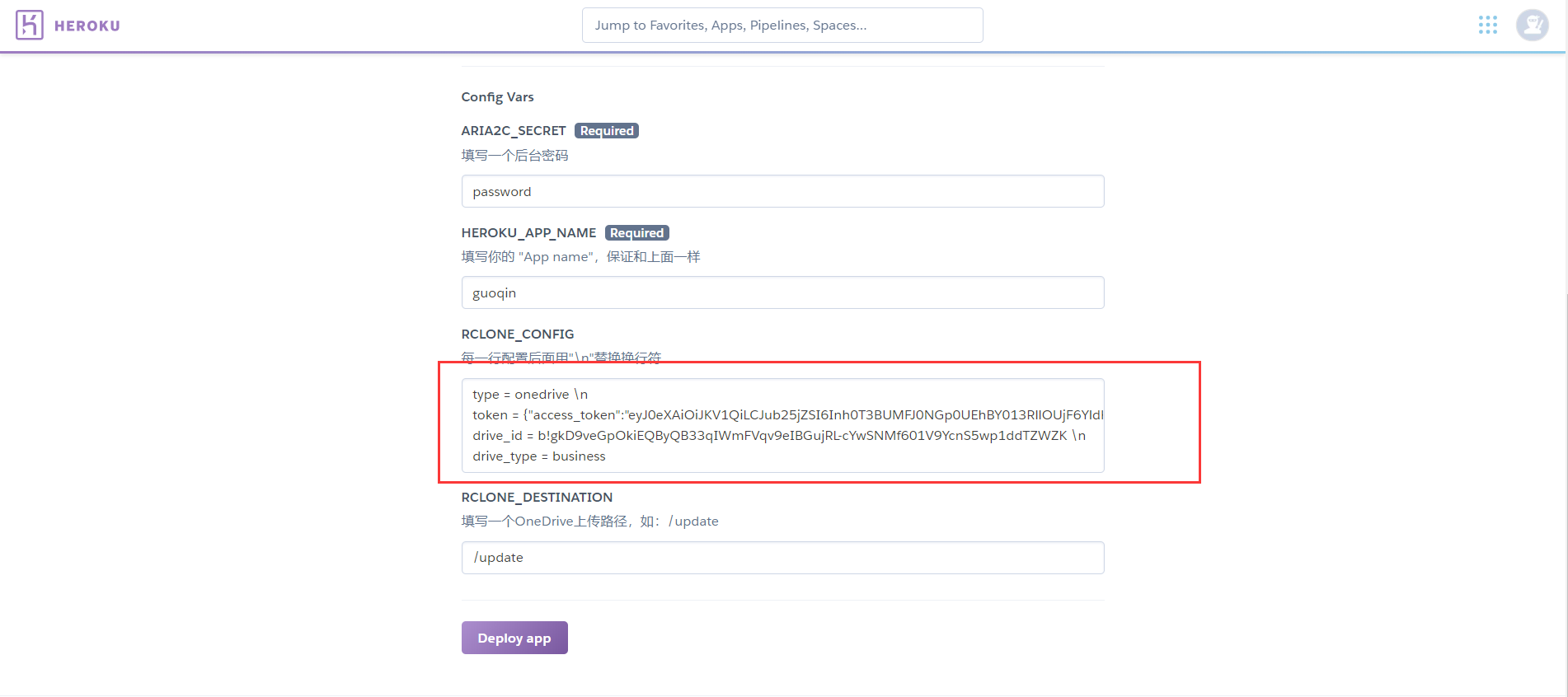
最后点击 Deploy app 创建
转载声明:转载自:https://aroins.com/67